Describing a screen can be surprisingly difficult. You may call something a menu while the support guide calls it a panel. You may forget the warning icon beside the message or the button that is greyed out.
A screenshot can give AI the missing visual context. It can also expose more information than you intended.
Screenshot or text?
A short error message with no visual context
Copying the exact text may be enough.
A confusing settings screen with similar controls
A cropped screenshot may help.
A banking screen showing account details
Do not upload it. Use official support and remove sensitive information.
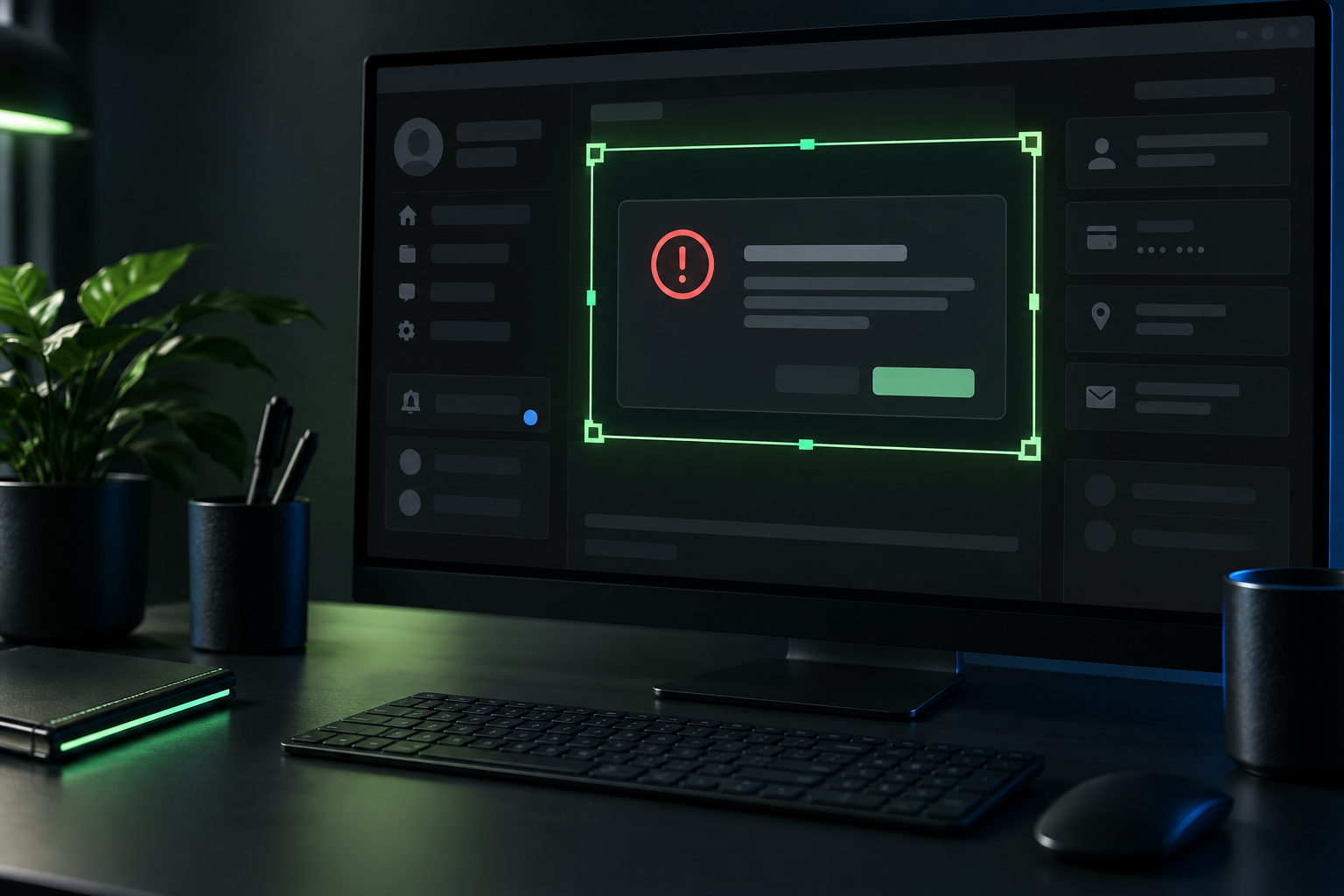
Use a screenshot when position matters
A screenshot is useful for an unfamiliar error, a confusing setting, a layout problem or a screen where several controls look similar.
It lets the AI see wording, position and surrounding clues together. This is often quicker than writing three paragraphs that still leave the exact screen unclear.
Do not upload the whole screen by habit
Look beyond the part you want help with.
Browser tabs can reveal private subjects. A profile picture and name may appear in the corner. Notifications, email addresses, customer details, file names and account numbers can sit around the edge.
Crop the image to the smallest useful area. Cover anything the AI does not need. If the error text alone is enough, copy that instead.
Give the screenshot a job
Do not upload an image and ask "What is wrong?"
Explain what you were trying to do, what you expected, what happened and what changed before the problem appeared.
Try:
I was trying to [task] in [app or website]. I expected [result], but the screen now shows the attached message. Explain the message in plain English. Point out the visible clues you used, separate what you can see from what you are assuming, and give me the safest next check. Do not ask me to delete data or change account security without explaining the effect.
Ask it to separate seeing from guessing
AI image analysis can misread small text, icons and context. Ask it to quote the visible wording and mark anything it cannot read.
If it claims a button is present, check the image yourself. If the next step affects data, payments, access or account security, confirm it in the official support guide.
A screenshot is a moment, not the whole problem
An error may depend on what happened before the screen appeared. Include the recent steps and whether the problem repeats.
For layout feedback, say which device and screen size you are using. A desktop screenshot does not show how the same page behaves on a phone.
Nova 9 view
Use a screenshot when the visual context carries information you cannot describe easily.
Crop first, explain the task and ask AI to separate what it sees from what it assumes. The picture improves the question. It does not prove the answer.
Sources and last checked
- OpenAI, Image inputs FAQ: https://help.openai.com/en/articles/8400551-chatgpt-image-inputs-faq
- Microsoft, File upload in Microsoft Copilot: https://support.microsoft.com/en-us/microsoft-copilot/file-upload-in-microsoft-copilot
- Google, Gemini Apps Privacy Hub: https://support.google.com/gemini/answer/13594961
- Last checked: 14 September 2026