What Canvas in Gemini actually helps with
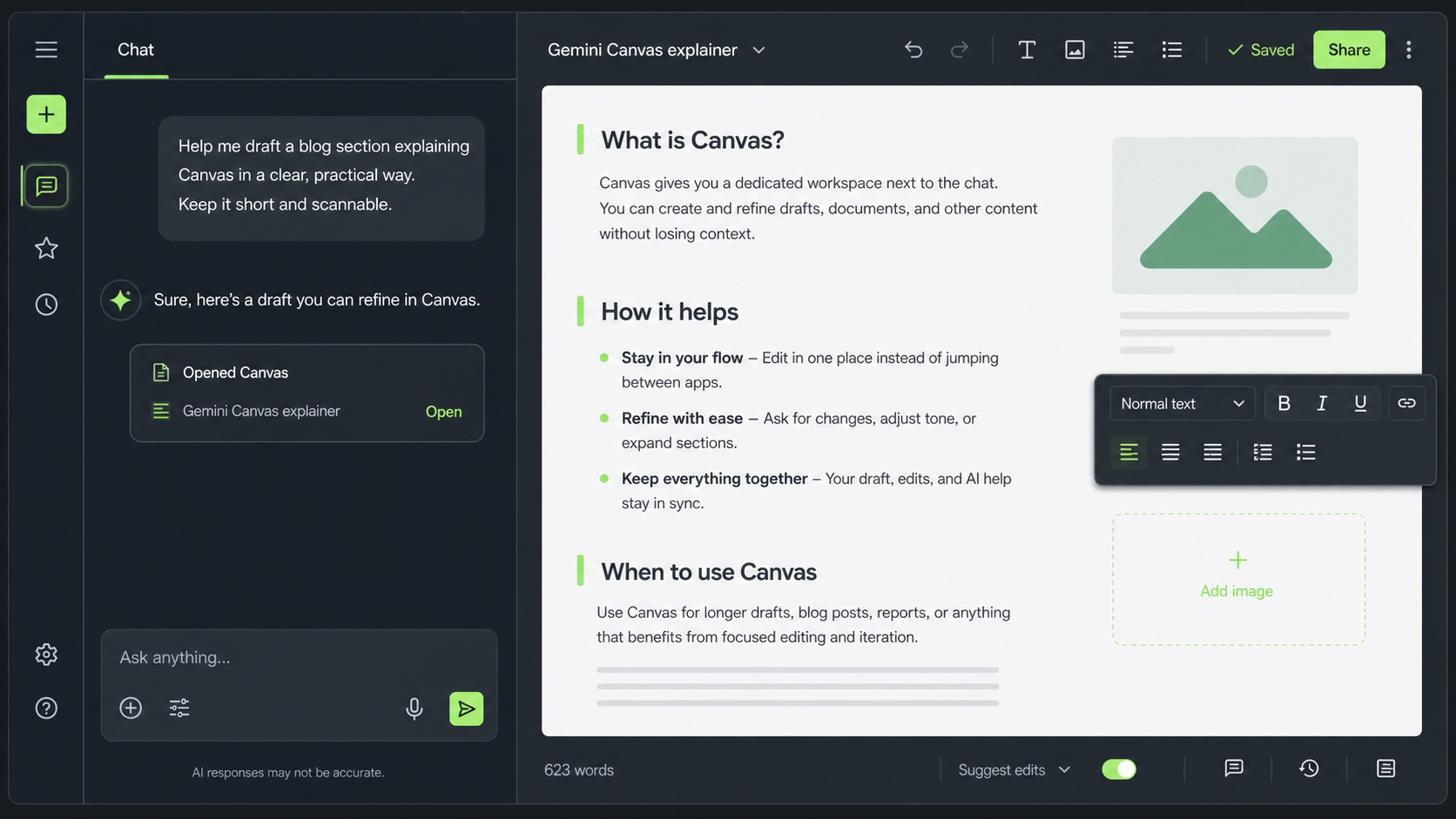
Canvas in Google Gemini gives you a working area beside the chat, so you can build and refine a draft without constantly copying text into another app.
That matters more than it sounds. A lot of people ask Gemini for a first draft, paste it into Word or Docs, tweak it there, then jump back into chat for more changes. It works, but it gets messy fast.
Canvas keeps the draft, the edits and the AI help in one place. If you are shaping longer text, adjusting tone, or iterating over a few rounds, it is usually a better experience than treating the whole job like a normal chat thread.
Drafts, rewrites, longer text, code, and anything you want to improve over a few passes.
You stay in one workspace instead of bouncing between Gemini and another editor.
It is closer to working on a live document than asking for one-off replies in chat.
Why people find Canvas useful
Once the draft opens in Canvas, you can work directly on it instead of managing separate copies. That makes the flow feel calmer and more practical.
- You can keep the chat and the working draft together.
- You can make targeted changes without rewriting everything.
- You can return to the same draft later and continue where you left off.
- You are less likely to lose track of which version is the latest.
When it is not really needed
Not every task needs Canvas. If you just want a quick answer, a short rewrite, or one paragraph cleaned up, normal chat is often enough.
- Quick factual questions.
- Short one-off prompts.
- Single paragraph rewrites.
- Tasks where you already plan to finish everything elsewhere.
Canvas in 4 easy steps
Starting is straightforward. The trick is to treat Canvas like a working draft space, not just a reply box with extra decoration.
-
Open Canvas
Below the prompt bar, choose Canvas if it is available, then start your draft or project from there.
-
Write a clean first prompt
Ask for the draft you actually want: blog intro, email, summary, short guide, landing-page copy, code snippet, or something else specific.
-
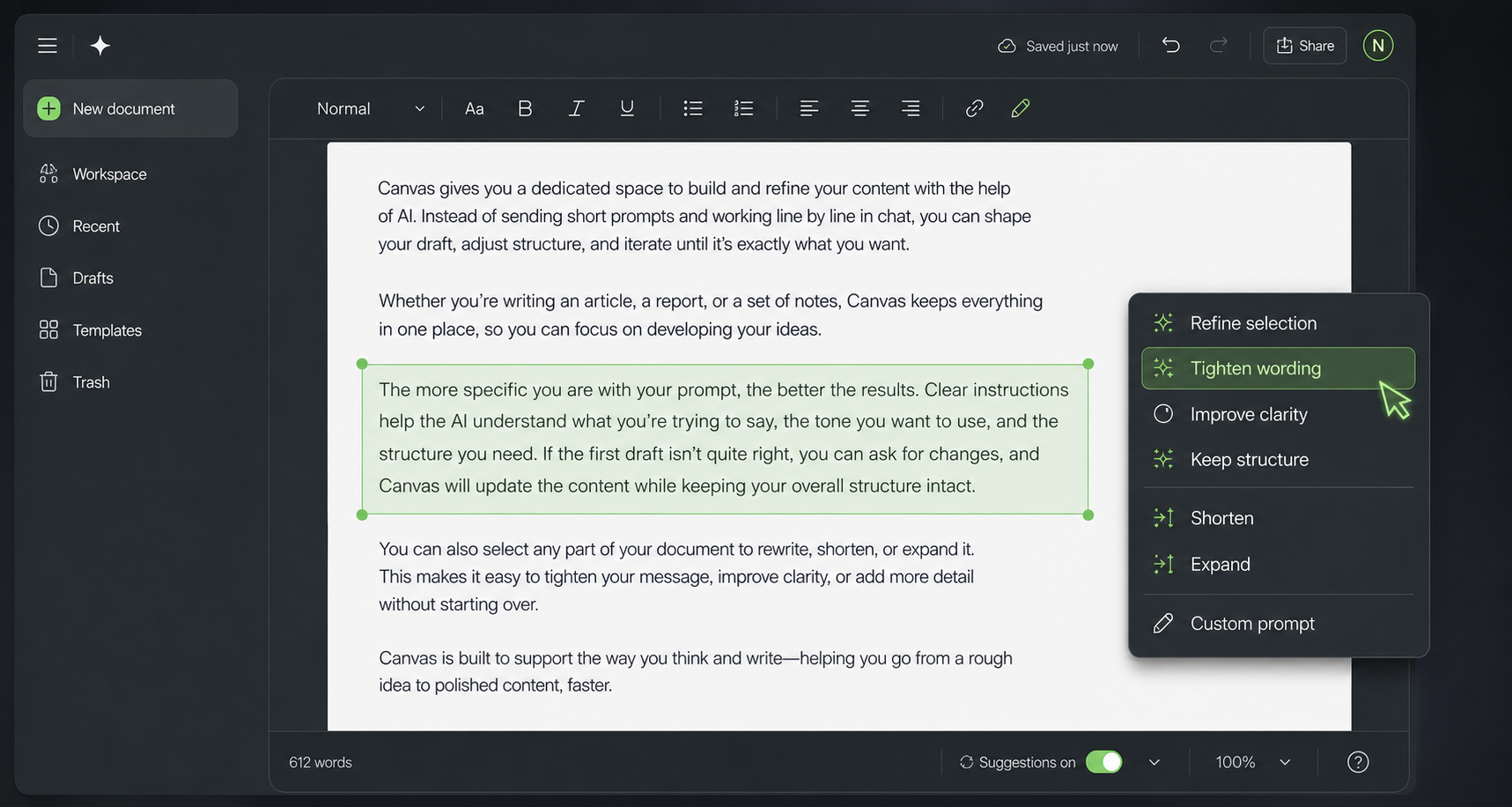
Highlight text and refine it
Once the draft is open, select the part that needs work and give a tighter instruction. That usually gets better results than asking for a full rewrite every time.
-
Review before you keep it
Read the final version with a human eye. Check tone, structure and accuracy, then copy it out or continue editing in the same space.
Prompts that help Canvas behave better
Ask directly: “Open this in Canvas.” If Google is phasing the manual option out in your version, try a longer drafting request first.
Use a tighter instruction such as: “Only improve spelling and clarity. Do not rewrite the whole thing.”
Give a style boundary: “Keep this plain, practical and human. Avoid hype and filler.”
Say: “Keep my structure. Improve the wording only.” That small line often makes a big difference.
What makes Canvas better than copy and paste
The win is not magic. It is simply less friction. You are not shuffling text back and forth between tools just to make a few edits.
For people who write regularly, that alone can make AI feel more usable and less annoying.
Where it still needs a human
Canvas helps with drafting, but it does not remove judgment. You still need to decide whether the wording sounds right, whether the facts hold up, and whether the final version actually suits the audience.
Nova9 view
Canvas is one of the first features we would switch on for anyone using AI to create longer drafts. It keeps the work in one place, cuts out some of the back-and-forth, and makes editing feel more natural.
That said, it is only useful when the task genuinely needs iteration. For quick answers, normal chat is still the simpler option.
Google is also changing how Canvas appears, so the manual option may not always show in the same way. If that happens, the underlying lesson is still the same: ask Gemini for a substantial draft, then refine the work in place instead of turning the whole process into copy-paste admin.